We may earn a commission for purchases through links on our site at no cost to you, Learn more.
- Emojis enhance communication by expressing emotions and adding personality to messages.
- Skin tone options for emojis allow users to reflect diverse identities and experiences.
- Most Android devices have built-in options for changing emoji skin tones directly on the keyboard.
- Customization of emojis can also be done within third-party apps like WhatsApp, Instagram, and Facebook Messenger.
- Keeping your Android device and keyboard updated ensures access to the latest emoji features and skin tones.
- Selecting the right skin tone for emojis can enhance authenticity and representation in conversations.
- Being inclusive and experimenting with different skin tones can foster positive communication.
- Personalizing emojis contributes to a broader conversation about representation in digital communication.
How to Change Skin Color of Emojis on Android
Emojis have become an integral part of our daily communication, allowing us to express emotions, convey messages, and even add a touch of personality to our texts. As the digital world continues to evolve, so do the ways we interact with it.
One significant aspect of emojis is their skin tone options, which allow users to personalize their expressions and reflect a more diverse range of identities. In this blog post, we will explore how to change skin color of emojis on Android devices, ensuring that your communication is both expressive and representative of your unique identity.
In the following sections, we will delve into the various methods available on Android devices, the steps to customize your emojis, and tips for selecting the right skin tone for your messages. Whether you’re using a Samsung, Google Pixel, or any other Android device, we’ll guide you through the process, making it easy to enhance your digital conversations.
Understanding Emoji Skin Tones
Before discussing the technical aspects of changing the skin color of emojis on Android, it’s essential to understand what emoji skin tones are and why they matter. Emojis have long been criticized for their lack of diversity, often defaulting to a yellow skin tone that doesn’t represent the vast array of human skin colors.
In response to this concern, the Unicode Consortium introduced skin tone modifiers for emojis, allowing users to choose from five different skin tones based on the Fitzpatrick scale. This scale includes:
- Type 1: Light skin tone (pale)
- Type 2: Fair skin tone (light)
- Type 3: Medium skin tone (neutral)
- Type 4: Tan skin tone (medium-dark)
- Type 5: Dark skin tone (deep)
These options empower users to express themselves more accurately and authentically. While many Android devices have integrated these options into their keyboards, changing the skin tone may differ depending on the device and the app you use. Let’s look at the various ways to customize your emojis on Android devices.
Changing Emoji Skin Color on the Default Keyboard
One of the most straightforward ways to change the skin color of emojis on Android is by using the default keyboard. Most Android devices come pre-installed with a keyboard that supports emoji customization. Here’s how to do it:
Step 1: Access the Emoji Keyboard
- Open any messaging app on your Android device (e.g., WhatsApp, Messages).
- Tap on the text input field to bring up the keyboard.
- Locate the emoji icon (usually found near the spacebar or as a separate button).
Step 2: Select Your Emoji
- Once the emoji keyboard is open, browse through the available emojis.
- Find the emoji you want to use (e.g., a smiley face, thumbs up, etc.).
Step 3: Change the Skin Tone
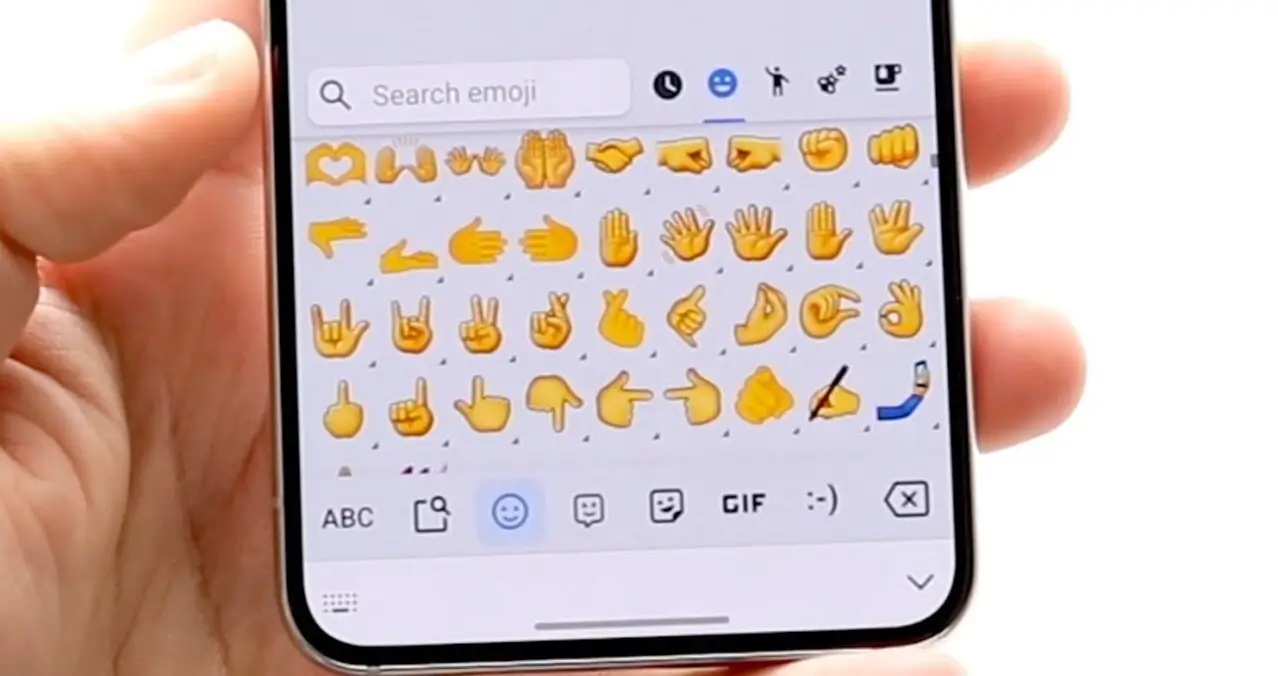
- After selecting an emoji, look for a skin tone option or a hand emoji icon. This is usually represented by a set of hand emojis in various skin tones.
- Tap on the hand emoji icon or the skin tone options above the emoji you selected.
- Choose your preferred skin tone by tapping on it. The emoji will change to reflect your selection.
Step 4: Insert the Emoji
- Once you’ve selected your desired skin tone, tap on the emoji to insert it into your text message.
- Continue typing your message, or send it as is.
This method quickly changes the skin color of emojis on Android, enabling you to express yourself accurately in conversations.
Customizing Emojis in Third-Party Apps
Many third-party messaging apps and social media platforms have emoji keyboards with skin tone customization options. Here’s how to change skin color of emojis on Android when using popular apps like WhatsApp, Instagram, and Facebook Messenger.
- Open WhatsApp and select a chat.
- Tap on the emoji icon to open the emoji keyboard.
- Find the emoji you want to customize and tap on it.
- If applicable, tap the skin tone icon and select your desired skin tone.
- Open Instagram and go to the messaging section.
- Tap on the chat you want to send a message in.
- Access the emoji keyboard by tapping on the emoji icon.
- Choose your emoji, tap the skin tone icon, and select your preferred tone.
Facebook Messenger
- Open Messenger and select a conversation.
- Tap the emoji icon to access the emoji keyboard.
- Find the emoji you want, tap it, and select the skin tone option to change it.
These steps will help you customize emojis within third-party applications, allowing you to maintain consistency in your messaging style across different platforms.
Updating Your Device and Keyboard Settings
Sometimes, your device may not display the latest emoji updates or skin tone options. Ensuring your device and keyboard settings are up to date is crucial for accessing the most current emoji options. Here’s how to check and update them:
Step 1: Update Your Android Device
- Go to the Settings app on your Android device.
- Scroll down and select System.
- Tap on Software Update.
- If an update is available, follow the prompts to download and install it.
Step 2: Update Your Keyboard App
If you are using a third-party keyboard app (like Gboard), make sure it is up to date:
- Open the Google Play Store.
- Search for your keyboard app (e.g., Gboard).
- If an update is available, tap Update.
Step 3: Enable Emoji Options in Keyboard Settings
- Open the Settings app on your device.
- Scroll down and select Languages & Input.
- Tap on your keyboard app and navigate to Preferences.
- Ensure that emoji suggestions and skin tone options are enabled.
Keeping your device and keyboard updated ensures you have the latest features, including new emoji designs and skin tones, enhancing your messaging experience.
Tips for Choosing the Right Skin Tone
When personalizing your emojis, choosing the right skin tone can enhance communication and representation. Here are some tips to help you make informed choices:
- Reflect Your Identity: Choose a skin tone that best represents you or the message you want to convey. This can help in creating a more authentic conversation.
- Context Matters: Consider the context of your message. For example, if you’re sending a celebratory message, a warm skin tone might convey positivity.
- Experiment: Don’t hesitate to experiment with different skin tones for various emojis. It can be fun to mix and match based on your mood or the conversation.
- Be Inclusive: When communicating with diverse groups, it may be beneficial to use a variety of skin tones to reflect inclusivity.
By following these tips, you can ensure that your use of emojis is thoughtful and representative of the diversity in our communities.
Frequent Asked Questions
Here are some of the related questions people also ask:
How can I change the skin tone of emojis on my Android keyboard?
To change the skin tone of emojis on your Android keyboard, open any messaging app, tap the emoji icon, select the emoji you want, and then choose the skin tone option (usually represented by a hand emoji icon) to select your preferred skin tone.
Do all Android devices support skin tone options for emojis?
Most modern Android devices support skin tone options for emojis, but the availability may vary based on the device model and the keyboard app being used. Ensure your device and keyboard are updated to access the latest emoji features.
Can I customize emojis in third-party messaging apps?
Yes, you can customize emojis in third-party messaging apps like WhatsApp, Instagram, and Facebook Messenger by accessing the emoji keyboard within the app and selecting the skin tone option for your chosen emoji.
What are the different skin tone options available for emojis?
The different skin tone options for emojis are based on the Fitzpatrick scale and include light, fair, medium, tan, and dark skin tones. These allow users to choose a tone that best represents them.
How do I update my Android device to get the latest emojis?
To update your Android device, go to the Settings app, select System, and tap Software Update. If an update is available, follow the prompts to download and install it.
Why is it important to change the skin tone of emojis?
Changing the skin tone of emojis is important because it allows users to express their identity more accurately and fosters inclusivity in digital communication by representing a diverse range of individuals.
Can I use different skin tones for the same emoji?
Yes, you can use different skin tones for the same emoji. Feel free to experiment with various skin tones based on the context of your message or your personal preference.
The Bottom Line
In conclusion, knowing how to change skin color of emojis on Android devices empowers users to express themselves more authentically and representatively. As we’ve explored, changing emoji skin tones is straightforward, whether using the default keyboard, customizing emojis in third-party apps, or updating device settings.
With the ability to choose from various skin tones, users can reflect on their identities and enhance their conversations, fostering a more inclusive digital environment. By following the steps outlined in this post and considering the tips for selecting the right skin tone, you can elevate your messaging experience on Android devices.
Emojis are not just simple icons; they represent our feelings, thoughts, and identities. By personalizing these symbols, we contribute to a broader conversation about representation in digital communication. So, explore the diverse world of emojis on your Android device and express yourself fully in your conversations!