We may earn a commission for purchases through links on our site at no cost to you, Learn more.
- Understanding battery health is essential for optimal smartphone performance and longevity.
- Battery health refers to a battery’s ability to hold charge compared to its original capacity.
- Regularly checking battery health helps prevent unexpected shutdowns and data loss.
- Built-in Android features can provide basic insights into battery performance.
- Third-party apps like AccuBattery, GSam Battery Monitor, and BatteryGuru offer detailed battery health statistics.
- ADB commands can provide in-depth battery information for advanced users.
- Physical inspection can help identify signs of battery issues, such as swelling or overheating.
- Proactive monitoring of battery health enhances the overall user experience and device reliability.
In our digital age, smartphones have become an integral part of our daily lives. The battery is perhaps the most crucial component among the various components that contribute to a smartphone’s performance. A healthy battery ensures your device runs efficiently, providing the expected performance and longevity.
However, as time passes, batteries degrade, leading to shorter usage times and unexpected shutdowns. Therefore, checking Android battery health percentage is essential for every smartphone user. This blog post will help you understand your Android battery’s health, the methods to check it, and tips for maintaining its longevity.
How to Check Android Battery Health Percentage
Before diving into how to check Android battery health percentage, it’s important to understand what battery health means. Battery health refers to the ability of your battery to hold a charge compared to its original capacity. Over time, batteries lose their capacity due to various factors, including the number of charge cycles, temperature extremes, and the overall age of the battery.
When a battery is new, it can generally hold a charge close to 100%. However, as the battery undergoes numerous charge cycles, it can start to hold less charge. For example, a battery functioning at 80% capacity can only hold 80% of what it was designed for, resulting in decreased usage time.
The Importance of Battery Health
Understanding your battery health is vital for several reasons:
- Performance Optimization: Knowing the battery’s health can help you understand whether it’s time to replace it or adjust your usage habits.
- Avoiding Unexpected Shutdowns: A deteriorating battery may cause your device to shut down unexpectedly, leading to data loss and interruptions in usage.
- Maximizing Lifespan: Regularly checking battery health allows you to take preventive measures that can prolong your device’s overall lifespan.
- Enhanced Device Performance: A healthy battery contributes to your smartphone’s overall performance, ensuring smooth operation without lag or slowdowns.
With this foundational knowledge, let’s explore how to check Android battery health percentage using various methods.
Using Built-in Android Features
Most Android devices have built-in features that allow users to check the battery health. Here’s how you can access these features:
- Open Settings: Navigate to your device’s settings by tapping the gear icon.
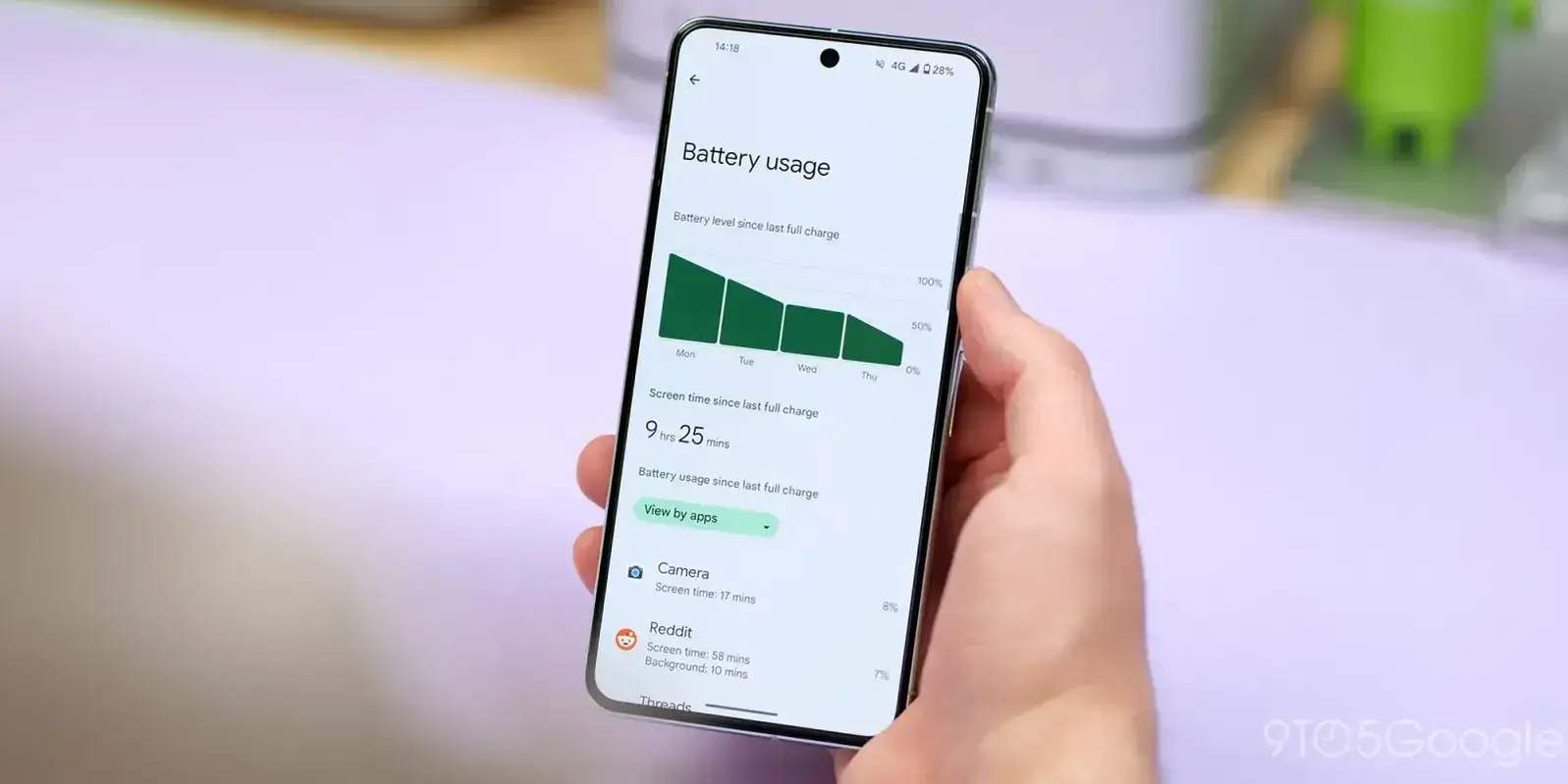
- Select Battery: Scroll down and tap on the “Battery” option. This section contains essential information about your battery’s performance, including its charge percentage and estimated usage time.
- Check Battery Usage: Some devices have a “Battery Usage” option that shows which apps consume the most battery life. While this doesn’t give you a direct battery health percentage, it can help identify issues impacting battery life.
- Advanced Options: Depending on your Android version, you might find an “Advanced” section where you can see more details about your battery’s health. Look for “Battery Health” or a similar term to see if this feature is available on your device.
By following these steps, you can get a quick overview of your battery’s current status. However, this method might not provide a detailed percentage of your battery health.
Using Third-Party Apps
If your device does not provide sufficient information about battery health, you can turn to third-party applications designed specifically for this purpose. Here are some popular apps to consider:
1. AccuBattery
AccuBattery is a highly-rated app that measures battery capacity and provides insights into battery health. It monitors how the battery discharges and charges, giving you a better understanding of its longevity. To use AccuBattery:
- Download and install the app from the Google Play Store.
- Open the app and follow the initial setup.
- Check the “Health” section to see your battery’s health percentage based on its capacity.
2. GSam Battery Monitor
GSam Battery Monitor is another excellent tool that provides extensive data on battery health. It includes features like usage statistics, detailed graphs, and a section dedicated to battery health. To check your battery health with GSam:
- Download and install the app from the Google Play Store.
- Open the app and navigate to the “Battery” section.
- Look for the “Battery Health” subsection to view your battery’s percentage.
3. BatteryGuru
BatteryGuru focuses on optimizing battery life while providing essential health statistics. It offers tips on how to extend battery life and insights into battery usage patterns. To check battery health using BatteryGuru:
- Download and install the app from the Google Play Store.
- Open the app and grant the necessary permissions.
- Check the battery health percentage displayed on the main screen.
Using third-party applications is a reliable way to get more accurate information about your battery’s health and tips on improving its longevity.
Using ADB Commands
For users comfortable with more technical methods, Android Debug Bridge (ADB) commands can provide in-depth battery statistics, including health percentage. Here’s a step-by-step guide on how to use ADB to check your battery health:
Step 1: Set Up ADB
- Install ADB: If you haven’t installed ADB on your computer, download and install the Android SDK Platform Tools.
- Enable Developer Options: On your Android device, go to Settings > About Phone, and tap the “Build number” seven times to enable Developer Options.
- Enable USB Debugging: Go back to Settings > Developer Options and enable USB Debugging.
Step 2: Connect Your Device
- Connect your Android device: Use a USB cable to connect your device to your computer.
- Open Command Prompt or Terminal: Navigate to the directory where ADB is installed, then open a Command Prompt or Terminal window.
Step 3: Run ADB Command
- Check device connection: Type the command
adb devicesto check if your device is connected. - Retrieve battery information: Use the command
adb shell dumpsys batteryto retrieve detailed battery information. Look for the “health” and “level” fields to assess your battery’s health status and charge percentage.
Using ADB commands is a more advanced method that can provide comprehensive battery health data but requires some technical knowledge.
Physical Inspection
While the previous methods focus on software solutions, sometimes, physical inspection is necessary to gauge your battery’s health. If you notice significant issues such as excessive swelling, unusual heat, or leakage, it’s crucial to take action immediately. Here are some signs that your battery might need replacement:
- Swelling: If the back of your device appears to be bulging, it’s a clear sign that the battery may be swollen and needs replacement.
- Overheating: If your phone frequently overheats during charging or use, it could indicate battery problems.
- Rapid Drainage: If your battery percentage drops significantly within a short period, even with minimal usage, it may be time to consider a replacement.
If you encounter any of these issues, it’s best to consult a professional technician or visit an authorized service center for a thorough inspection.
Frequently Asked Questions
Here are some of the related questions people also ask:
How can I tell if my Android battery is healthy?
You can check your battery health by navigating to Settings > Battery on your device. Some Android devices provide basic battery health information. Consider using third-party apps like AccuBattery or GSam Battery Monitor for more detailed insights.
What is the average lifespan of an Android battery?
The average lifespan of an Android battery is typically 2 to 3 years, depending on usage patterns, charging habits, and environmental factors. After this period, battery capacity may significantly decrease.
How often should I check my Android battery health?
It’s advisable to check your battery health every few months or if you notice performance issues such as rapid battery drainage, unexpected shutdowns, or overheating.
Can I improve my Android battery health?
You can improve battery health by avoiding extreme temperatures, minimizing background app activity, reducing screen brightness, and using battery-saving modes. Regularly checking battery usage can also help identify power-hungry apps.
What are some signs that my Android battery needs replacing?
Excessive swelling, rapid battery drainage, frequent overheating, or unexpected shutdowns during normal use are signs that your Android battery may need replacing.
Is it safe to use third-party apps to check battery health?
Yes, most reputable third-party apps for checking battery health, like AccuBattery and GSam Battery Monitor, are safe to use. However, download them from the Google Play Store and check user reviews before installation.
How do I extend the lifespan of my Android battery?
To extend your Android battery’s lifespan, avoid letting it fully discharge frequently, keep it charged between 20-80%, use battery-saving modes, and avoid extreme temperatures. Regularly updating your apps can also help improve battery performance.
The Bottom Line
Knowing how to check Android battery health percentage is vital for maintaining your device’s performance and longevity. Regularly monitoring your battery health can help you understand its capacity, prevent unexpected shutdowns, and optimize your smartphone’s performance.
We explored various methods to check battery health, including built-in Android features, third-party applications, ADB commands, and physical inspections. Each method has advantages and can be chosen based on your comfort level and technical expertise.
In conclusion, taking proactive steps to monitor your battery health can significantly enhance your Android experience. Whether you’re a casual user or a tech enthusiast, keeping an eye on your battery health will ensure your device remains functional and reliable.
Don’t hesitate to explore these methods and implement best practices to prolong your battery’s lifespan. By being informed and attentive to your battery’s health, you can enjoy your smartphone to its fullest potential without the fear of sudden shutdowns or decreased performance.