We may earn a commission for purchases through links on our site at no cost to you, Learn more.
- An unresponsive touch screen on an Android device can disrupt its usability, but it is often fixable.
- Start troubleshooting by restarting the device and cleaning the screen to remove dirt and grime.
- Check for software issues by updating the operating system and entering Safe Mode to identify problematic apps.
- Remove screen protectors and cases that may interfere with touch sensitivity.
- Inspect the device for physical damage that could affect touch response.
- Calibrate the touch screen using third-party apps to restore sensitivity.
- Perform a factory reset as a last resort if other solutions fail.
- If all else fails, seek professional repair services for potential hardware issues.
An unresponsive touch screen on an Android device can be incredibly frustrating. Whether there’s a slight delay in registering your touch or the screen not responding, the issue disrupts the fluid experience smartphones are known for. But worry not—there are several ways to diagnose and resolve this problem.
In this comprehensive guide, we’ll explain how to fix unresponsive touch-screen Android devices. We’ll explore potential causes, simple DIY fixes, and more technical solutions you can try before resorting to professional repair services.
How to Fix Unresponsive Touch Screen Android
Touch screens are at the heart of modern smartphones, transforming the way we interact with our devices. However, when a touch screen becomes unresponsive, it can feel like you’ve lost access to your phone.
Fortunately, an unresponsive touch screen doesn’t necessarily mean your phone is beyond repair. Sometimes, a simple restart or a quick cleanup can resolve the problem. In other cases, it might be a software or hardware issue that requires more attention.
In this guide, we’ll cover both basic and advanced troubleshooting methods for fixing unresponsive touch-screen Android devices. Whether the issue is caused by dirt, outdated software, or physical damage, you’ll find the steps you need to get your device back in working order.
1. Basic Troubleshooting: Restarting and Cleaning the Screen
Before diving into complex solutions, it’s important to start with the basics. Sometimes, the reason your touch screen isn’t working could be as simple as a temporary glitch or dirt on the screen.
Restart Your Android Device
The first thing you should try when dealing with an unresponsive touch screen is restarting your phone. This can often resolve minor software bugs that cause the screen to freeze or stop responding.
To restart your device, hold down the power button and select “Restart” or “Power Off.” If your touch screen isn’t working well enough to tap on these options, try holding down the power button for 10-15 seconds until the phone automatically restarts.
Clean the Screen
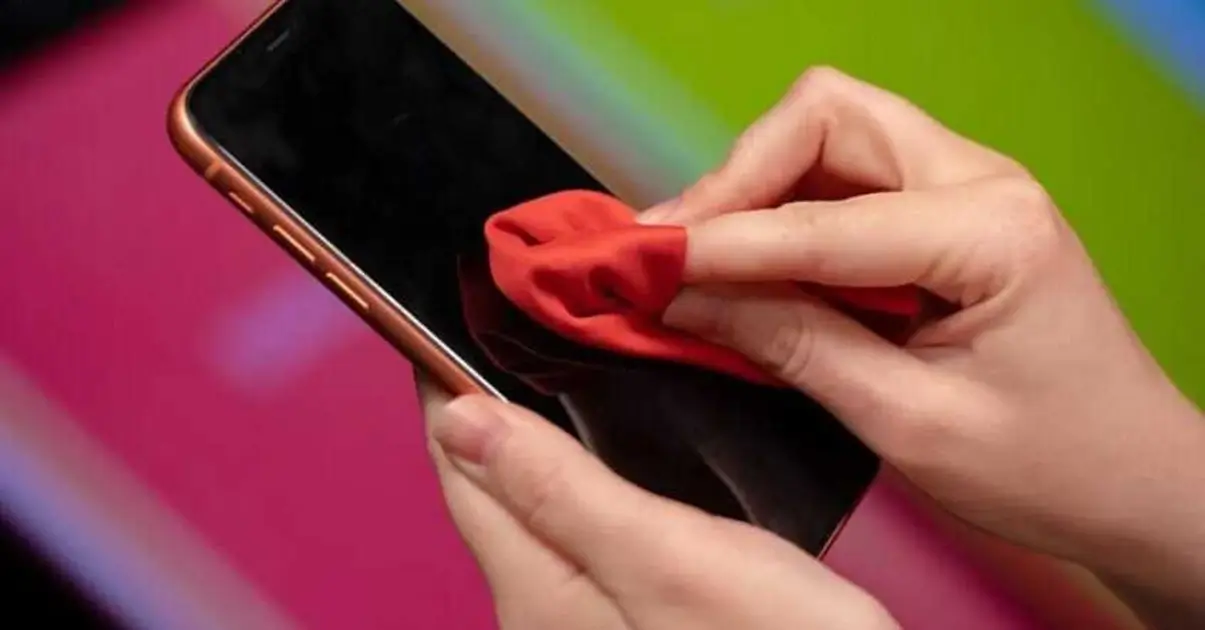
Another simple fix is to clean your phone’s screen. Dust, grime, or even smudges can affect the sensitivity of a touch screen. Ensure your hands are clean and dry, and use a microfiber cloth to wipe the screen gently. Avoid using any liquids unless it’s a specialized screen cleaner.
It may sound too simple, but keeping the screen clean can sometimes be the easiest solution when fixing unresponsive touch-screen Android devices.
2. Check for Software Issues: Update and Safe Mode
If restarting and cleaning doesn’t solve the issue, it’s time to consider potential software problems. A bug in the operating system or a poorly coded app could be interfering with your touch screen’s responsiveness.
Update Your Software
Outdated software can lead to several issues, including an unresponsive touch screen. Developers regularly release updates to fix bugs, improve performance, and enhance device security. Make sure your phone’s operating system and apps are up to date.
To check for software updates, go to:
- Settings > Software Update (or System Update).
- Select Download and Install if an update is available.
Updating your Android system can resolve any known issues that cause unresponsiveness.
Boot Into Safe Mode
If you suspect a specific app is causing the problem, booting your phone into Safe Mode can help. Safe Mode disables all third-party apps and runs only the essential system functions, helping you determine if a rogue app is the culprit behind the unresponsive touch screen.
To enter Safe Mode:
- Hold down the power button.
- When the “Power Off” icon appears, press and hold it until you see the option to enter Safe Mode.
- Select Safe Mode and see if the touch screen starts working.
If the screen works fine in Safe Mode, you likely have a problematic app. Try uninstalling recently downloaded apps or ones you suspect may be causing the issue.
3. Hardware Troubleshooting: Screen Protectors and Physical Damage
Sometimes, the issue is hardware-related, particularly if your phone has been dropped or exposed to water. Here are some steps to diagnose and fix hardware-related problems.
Remove Screen Protectors and Cases
Although screen protectors are designed to shield your phone from damage, some poorly made protectors can interfere with touch sensitivity. If your touch screen started acting up after installing a new screen protector, try removing it and see if the issue persists.
Similarly, some phone cases may interfere with the screen, especially if they cover parts of the device that are important for touch detection. Remove your phone case and see if that solves the problem.
Check for Physical Damage
If your Android device has been dropped recently, the unresponsive screen could result from physical damage. Cracks, dents, or internal damage could affect how your phone registers touch input. Inspect the screen closely for any visible damage.
In the case of water damage, immediate action is crucial. If your phone was exposed to moisture, dry it as quickly as possible using a bag of uncooked rice or silica gel packets. Don’t try to power it on until you’re sure it’s completely dry, as this could cause further damage.
4. Advanced Fixes: Calibration and Factory Reset
If basic troubleshooting and checking for damage haven’t resolved the issue, more advanced fixes may be required. These methods involve resetting your device’s software or recalibrating the touch screen.
Calibrate the Touch Screen
In some cases, recalibrating the touch screen can restore its sensitivity. Although Android devices don’t have a built-in screen calibration tool, you can download third-party apps from the Google Play Store, such as “Touchscreen Calibration.”
Follow the app’s instructions to calibrate your screen and see if it changes how the touch screen responds.
Perform a Factory Reset
You can perform a factory reset on your Android device as a last resort. This will restore the phone to its original settings, wiping all apps, data, and custom configurations. Be sure to back up your important files before proceeding.
To factory reset your phone:
- Go to Settings > Backup & Reset.
- Select Factory Data Reset.
- Follow the on-screen instructions to complete the reset.
Once your phone restarts, check if the touch screen is working properly. If the factory reset doesn’t solve the problem, the issue may be a hardware defect that requires professional repair.
Frequently Asked Questions
Here are some of the related questions people also ask:
What causes an Android touch screen to become unresponsive?
An Android touch screen can become unresponsive due to software glitches, outdated applications, physical damage, water exposure, or interference from screen protectors and cases.
How do I know if my touch screen is damaged?
Signs of a damaged touch screen include cracks or scratches on the surface, areas that don’t register the touch, or inconsistent touch responses. If your phone has been dropped or exposed to moisture, further inspection is warranted.
Can a software update fix an unresponsive touch screen?
Yes, updating your Android device’s software can fix bugs and improve performance, potentially resolving issues related to an unresponsive touch screen.
What should I do if my touch screen is not working in Safe Mode?
If the touch screen remains unresponsive in Safe Mode, the issue is likely hardware-related, and you may need professional repair services.
Is it safe to perform a factory reset on my Android device?
A factory reset is generally safe but will erase all your data, apps, and custom settings. Before proceeding, make sure to back up important files.
How can I clean my touch screen without damaging it?
Use a microfiber cloth, a screen-safe cleaner, or a mixture of water and isopropyl alcohol. Avoid using paper towels or abrasive materials that can scratch the surface.
What should I do if removing the screen protector doesn’t fix the problem?
If removing the screen protector doesn’t resolve the unresponsiveness, try recalibrating the touch screen using third-party calibration apps, and consider performing a factory reset if necessary. If the problem persists, consult a professional for hardware issues.
The Bottom Line
A malfunctioning touch screen can disrupt your entire smartphone experience, but there are several steps you can take to address the issue. From simple fixes like restarting your phone and cleaning the screen to more technical solutions like updating software, entering Safe Mode, and calibrating the screen, there are numerous methods for fixing unresponsive touch screen Android devices.
Start with the basics—restart your device, clean the screen, and check for software updates. If those don’t work, try Safe Mode to identify problematic apps or inspect the phone for physical damage. For more persistent issues, calibrating the touch screen or performing a factory reset can often resolve deeper problems.
If none of these steps work, it may be time to visit a repair shop, as the issue could be related to hardware damage that can’t be fixed at home. However, with the troubleshooting tips covered in this guide, you can restore your phone’s touch functionality without professional help.
Ultimately, knowing how to fix unresponsive touch-screen Android devices can save you time and money, ensuring you get the most out of your smartphone again.