We may earn a commission for purchases through links on our site at no cost to you, Learn more.
- External microphones enhance audio quality on Android devices.
- Lavalier, shotgun, USB, and condenser mics are common types of external microphones.
- Use a 3.5mm jack, USB OTG cable, or adapter to connect a microphone to your Android device.
- Ensure your microphone is selected and configured correctly in your recording app.
- Proper positioning and using an audio interface can improve recording quality.
- Troubleshoot issues like no sound, compatibility problems, and noise interference.
Smartphones have become indispensable tools for communication, recording, and content creation. While built-in microphones on Android devices are decent, they often fall short in scenarios where high-quality audio is essential, such as podcasting, recording music, or conducting interviews.
This is where an external microphone can make a significant difference. If you’re wondering how to use an external mic with Android, this guide will walk you through the process, covering everything from types of external mics to troubleshooting tips.
How to Use External Mic with Android
Using an external mic with an Android device can greatly enhance the audio quality of your recordings. Whether you’re a budding content creator, a professional podcaster, or simply someone who values high-quality sound, understanding how to use an external mic with Android can open up a world of possibilities.
This guide will provide you with a comprehensive overview of how to connect and utilize an external microphone with your Android device. It will include the types of microphones available, how to connect them, and tips for ensuring optimal performance.
Types of External Microphones
Before diving into the specifics of using external mic with Android, it’s crucial to understand the different types of external microphones available. The choice of microphone can impact the overall audio quality and the ease of use with your Android device. Here are the main types:
1. Lavalier Microphones
Lavalier microphones, also known as lapel mics, are small, clip-on mics that are often used in interviews and presentations. They offer hands-free operation and are ideal for capturing clear audio from a specific speaker.
Lavalier mics usually come with a 3.5mm TRRS plug compatible with many Android devices. However, you may need an adapter if your device lacks a headphone jack.
2. Shotgun Microphones
Shotgun microphones are highly directional and are excellent for capturing audio from a specific source while minimizing background noise. They are commonly used in video production and field recording.
To use a shotgun mic with an Android device, you’ll typically need an adapter to connect the microphone’s XLR or 3.5mm TRS connector to your phone’s input.
3. USB Microphones
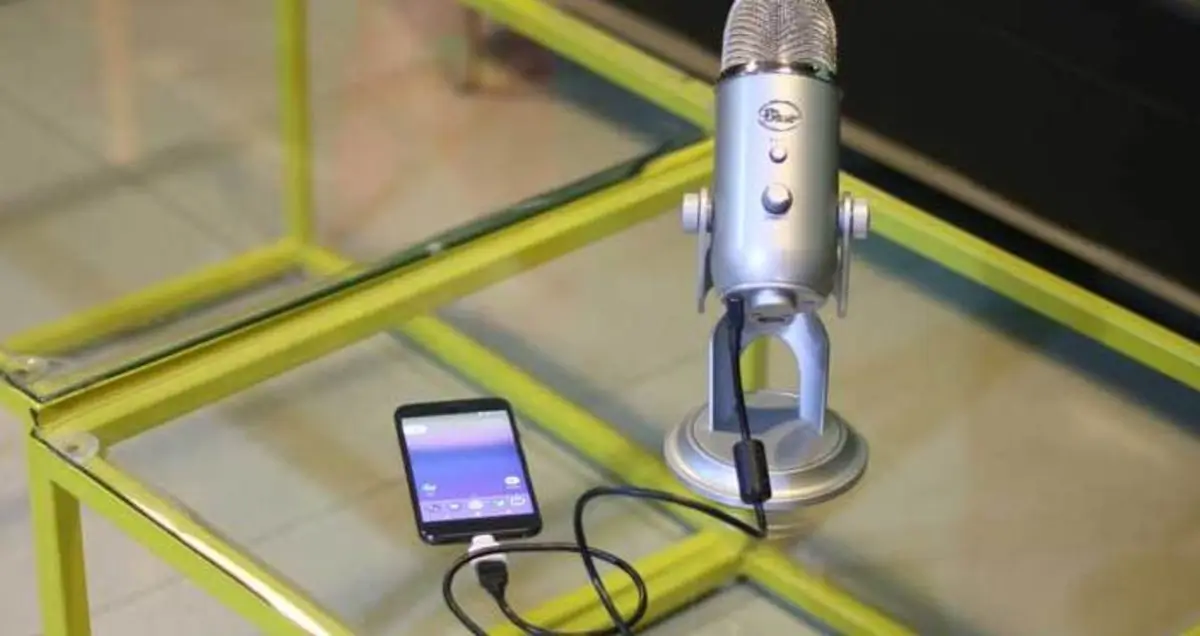
USB microphones are designed to be plugged directly into a USB port. While most Android devices don’t have a standard USB port, you can use a USB OTG (On-The-Go) adapter to connect a USB microphone.
USB mics are favored for their ease of use and superior sound quality, making them great for recording on the go.
4. Condenser Microphones
Condenser microphones are known for their sensitivity and ability to capture a wide range of frequencies. They are commonly used in studio settings for vocals and instruments.
To use a condenser mic with an Android device, you’ll need an adapter or an audio interface to convert the mic’s output to a format compatible with your phone.
Connecting Your External Microphone
Once you’ve chosen the right microphone for your needs, the next step is connecting it to your Android device. Here’s a step-by-step guide on how to use an external mic with Android:
1. Check Your Device’s Compatibility
Before connecting an external mic, ensure that your Android device is compatible. Most modern Android phones have a 3.5mm headphone jack, but some newer models may lack this port. If your device doesn’t have a headphone jack, you’ll need to use an adapter or a USB OTG cable.
2. Using the 3.5mm Jack
Connecting a microphone is straightforward if your device has a 3.5mm headphone jack. Simply plug the microphone into the jack. If your device supports the TRRS (Tip-Ring-Ring-Sleeve) standard, make sure your microphone’s plug is a TRRS (Tip-Ring-Ring-Sleeve) type, as it allows both audio input and output.
3. Using an Adapter
For devices without a headphone jack, you can use a USB-C to 3.5mm adapter or a Lightning to 3.5mm adapter (depending on your device’s port). Connect the adapter to your phone and then plug your microphone into the adapter. Ensure that the adapter supports audio input, as not all adapters are designed for this purpose.
4. Using a USB OTG Cable
To connect a USB microphone, you’ll need a USB OTG cable. Connect the OTG cable to your Android device, and then plug the USB microphone into the OTG cable. Your phone should recognize the microphone, and you might need to select it as the input device in your recording app.
5. Testing the Microphone
After connecting your microphone, it’s important to test it to ensure it’s working correctly. Open a recording app or a voice memo app, and perform a test recording. Check the audio quality and ensure that the external microphone is being used instead of the built-in mic.
Configuring and Using Your Microphone
Once your external microphone is connected, you may need to configure it to ensure optimal performance. Here’s how to make the most out of your external mic with Android:
1. Selecting the Microphone in Your Recording App
Most recording apps on Android will automatically switch to the external microphone when connected. However, it’s a good idea to check the app’s settings to confirm that the external mic is selected as the audio input source.
2. Adjusting Input Levels
Some recording apps allow you to adjust the input levels for your microphone. Make sure to set the levels appropriately to avoid distortion or low volume. If your app doesn’t offer this feature, you may need to use an external audio interface that provides more control over input levels.
3. Positioning the Microphone
Proper microphone placement is crucial for achieving high-quality recordings. For lavalier mics, clip the microphone near your mouth, ideally around 6-8 inches away. For shotgun mics, position the mic pointing towards the sound source while keeping it as close as possible.
For condenser mics, ensure they are positioned in a quiet environment with minimal background noise.
4. Using External Audio Interfaces
Consider using an external audio interface if you’re using high-end microphones or need additional features. An audio interface can connect multiple microphones, adjust input levels, and provide phantom power for condenser mics.
Connect the audio interface to your Android device via USB OTG and configure it according to the manufacturer’s instructions.
Troubleshooting Common Issues
Even with proper setup, you may encounter issues when using an external mic with Android. Here are some common problems and their solutions:
1. No Sound or Low Volume
If you’re not getting any sound or the volume is too low, ensure the microphone is properly connected and selected in your recording app. Check the microphone’s settings and input levels. Also, verify that your microphone is not muted or damaged.
2. Compatibility Issues
If your microphone isn’t recognized, ensure you’re using the correct adapter or cable for your device. For USB microphones, confirm that your Android device supports USB OTG. If you’re using a TRRS mic, ensure the plug is fully inserted into the jack.
3. Interference or Noise
Background noise or interference can affect recording quality. Position your microphone away from sources of noise and use windshields or pop filters if necessary. For shotgun mics, use the directional capabilities to minimize unwanted noise.
4. Software Conflicts
Sometimes, software issues can affect microphone performance. Restart your Android device and try using a different recording app. Ensure that your Android OS and apps are up to date.
Frequent Asked Questions
Here are some of the related questions people also ask:
1. What types of external microphones are compatible with Android devices?
Answer: External microphones compatible with Android devices include lavalier mics (clip-on), shotgun mics (directional), USB microphones (using USB OTG cables), and condenser mics (with appropriate adapters or audio interfaces).
2. How do I connect a USB microphone to my Android phone?
Answer: To connect a USB microphone to an Android phone, use a USB OTG (On-The-Go) cable. Plug the OTG cable into your phone and connect the USB microphone to the OTG cable.
3. Can I use a 3.5mm microphone with an Android device that doesn’t have a headphone jack?
Answer: Yes, you can use a 3.5mm microphone with an Android device without a headphone jack by using a USB-C or Lightning to 3.5mm adapter, provided the adapter supports audio input.
4. How do I ensure my external microphone is being used instead of the built-in mic?
Answer: Open your recording app and check its settings to confirm that the external microphone is selected as the audio input source. Test the microphone by recording and checking the audio quality.
5. What should I do if my external microphone is not recognized by my Android device?
Answer: Ensure the microphone is properly connected and compatible with your device. For USB mics, confirm that USB OTG is supported. Check for any required adapter or cable issues and try restarting your device.
6. How can I improve audio quality with an external microphone on Android?
Answer: Improve audio quality by positioning the microphone correctly, using windshields or pop filters, adjusting input levels in your recording app, and reducing background noise.
7. Are there any common issues when using an external mic with Android, and how can I fix them?
Answer: Common issues include no sound, low volume, compatibility problems, and interference. Fix them by checking connections, ensuring correct settings, using appropriate adapters, and positioning the microphone to minimize noise.
The Bottom Line
Understanding how to use an external mic with Android can significantly enhance the quality of your recordings, whether for professional or personal use. By choosing the right type of microphone, correctly connecting it to your device, and configuring it properly, you can achieve superior audio performance that surpasses the capabilities of built-in microphones. Remember to test your setup thoroughly, troubleshoot any issues, and take care of your equipment to ensure consistent results.
The versatility of external microphones opens up new possibilities for recording high-quality audio on the go. Whether you’re capturing a podcast episode, recording a live event, or simply improving your voice calls, an external microphone can make a world of difference. With the knowledge of how to use an external mic with Android, you’re well-equipped to take your audio recordings to the next level. Happy recording!