We may earn a commission for purchases through links on our site at no cost to you, Learn more.
- Accessing saved passwords on Android is essential for efficient account management.
- Google Password Manager offers a straightforward way to view saved passwords on Android devices.
- Chrome allows users to access and manage saved passwords through its settings.
- Third-party password managers provide additional features and enhanced security for managing passwords.
- Implementing strong, unique passwords and enabling two-factor authentication are crucial for online security.
- Regularly updating passwords and being cautious of phishing attacks helps protect sensitive information.
- Staying informed about password management practices enhances your digital security.
In today’s digital age, managing our passwords has become increasingly crucial. With so many accounts requiring unique and complex passwords, it’s easy to forget what we’ve saved.
Android devices, like smartphones and tablets, offer convenient features that allow users to store and manage passwords. However, navigating these settings can be tricky, especially for the less tech-savvy.
This blog post aims to guide you through the process of retrieving your saved passwords on Android. By the end, you’ll have a clear understanding of how to access and manage your passwords safely and efficiently.
How Do I See My Saved Passwords on Android?
Understanding how to see your saved passwords on Android can be invaluable for various reasons. First, as more services require multi-factor authentication and complex passwords, the likelihood of forgetting your credentials increases. By accessing your saved passwords, you can quickly log in to your accounts without resetting or recovering passwords, saving you time and frustration.
Second, if you’re switching devices or need to back up your information, knowing how to access saved passwords can facilitate a smooth transition. Additionally, sharing accounts with family or friends is common, and having access to these credentials can help manage those shared accounts.
Finally, for security purposes, you might want to review and update your saved passwords to ensure they meet current security standards.
Using Google Password Manager on Android
One of the most common methods for accessing saved passwords on Android devices is through the Google Password Manager. Most Android smartphones are equipped with Google services, which automatically save your passwords when you use Google Chrome or other Google apps.
Steps to Access Google Password Manager
- Open Settings: Go to the Settings app on your Android device.
- Scroll to Google: Look for the Google option and tap on it.
- Manage Your Google Account: From the Google settings, tap “Manage your Google Account.”
- Navigate to Security: Find the “Security” tab and tap on it.
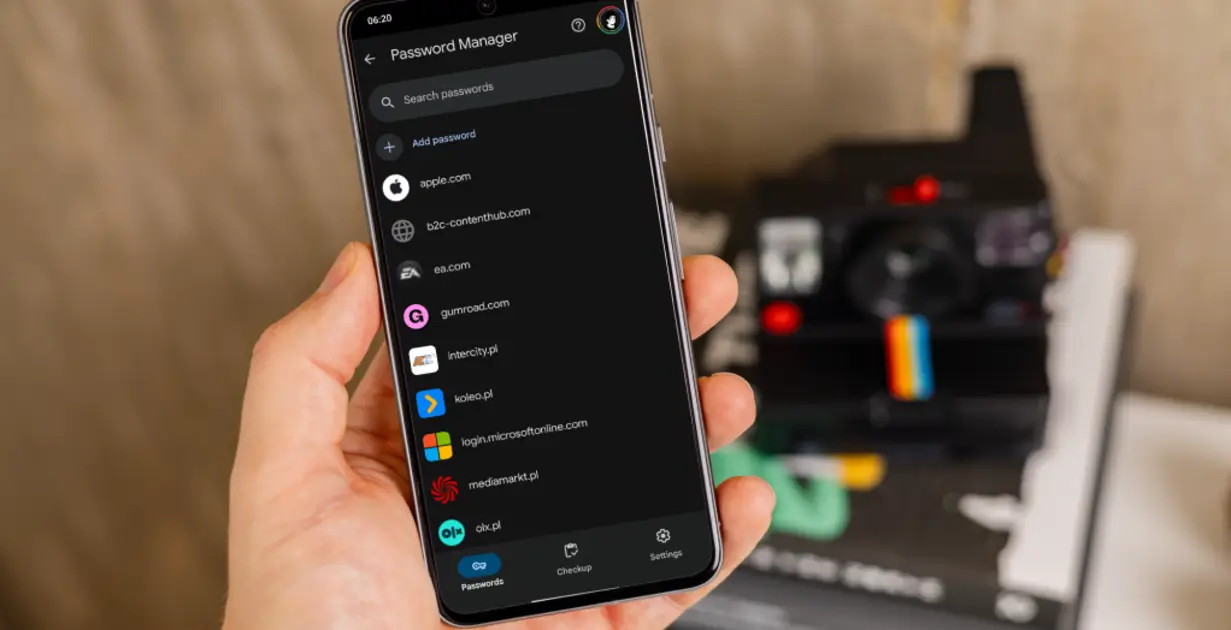
- Password Manager: Scroll down until you see “Password Manager.” Tap on it to view a list of all the saved passwords.
By following these steps, you can view your saved passwords, including the websites and associated usernames. If you’re wondering how do I see my saved passwords on Android, the Google Password Manager is often the most straightforward solution.
Using Chrome to View Saved Passwords
If you use Google Chrome as your browser, it provides a built-in option to view saved passwords. This method is particularly useful if you frequently access various websites and want to manage your saved login details efficiently.
Steps to View Saved Passwords in Chrome
- Open Chrome: Launch the Google Chrome app on your Android device.
- Access Settings: Tap on the three dots in the top-right corner to open the menu and select “Settings.”
- Passwords: Tap on “Passwords” to see a list of saved passwords.
- View Passwords: Here, you can view all your saved passwords. To see the actual password, tap the eye icon next to it. For security reasons, you may be prompted to enter your device’s PIN, pattern, or password.
This method lets you quickly check and manage your passwords without diving deep into your device settings. So, whenever you ask, “How do I see my saved passwords on Android?” checking Chrome is a reliable way to do it.
Using Third-Party Password Managers
While Google Password Manager and Chrome provide convenient options for managing passwords, some users prefer third-party password managers for additional features and enhanced security.
Applications like LastPass, Dashlane, and 1Password offer advanced options, including password generation, secure sharing, and cloud syncing across multiple devices.
Steps to Access Passwords in a Third-Party Manager
- Download the App: If you don’t have a password manager, download one from the Google Play Store.
- Create an Account: Sign up for an account and follow the app’s setup instructions.
- Import Passwords: If you’ve used Google Password Manager before, many apps allow you to import your saved passwords directly.
- View Saved Passwords: Once set up, navigate to the vault or password section of the app to view your saved credentials.
Using a third-party password manager can offer an added layer of security and convenience. If you’re ever wondering, “How do I see my saved passwords on Android?” and you’re using a third-party app, it usually provides a user-friendly interface to help you manage your credentials.
Keeping Your Passwords Secure
Accessing your saved passwords is essential, but keeping them secure is equally important. Cybersecurity threats are becoming increasingly sophisticated, making it vital to take steps to protect your sensitive information.
Best Practices for Password Security
- Use Strong, Unique Passwords: Ensure each account has a strong password that combines letters, numbers, and symbols. Avoid using the same password across multiple accounts.
- Enable Two-Factor Authentication: Enable two-factor authentication (2FA) on your accounts whenever possible. This adds an extra layer of security beyond just your password.
- Update Passwords Regularly: Make it a habit to change your passwords regularly. This practice helps minimize the risk of unauthorized access.
- Be Wary of Phishing Attacks: Always double-check the URLs of websites you log into. Avoid clicking on links in unsolicited emails or messages, as they may lead to phishing sites.
- Use a Password Manager: A reputable password manager not only saves your passwords but also helps you generate strong passwords and alerts you to potential security breaches.
By following these best practices, you can significantly enhance your password security while having easy access to your credentials.
Frequently Asked Questions
Here are some of the related questions people also ask:
How can I find my saved passwords on my Android phone?
You can find your saved passwords by going to Settings > Google > Manage your Google Account > Security > Password Manager. Alternatively, you can access them through the Chrome browser by going to Settings > Passwords.
Can I view my saved passwords without a password manager app?
Yes, you can view your saved passwords directly through the Google Password Manager or the Chrome browser settings without needing a third-party password manager app.
What should I do if I forget my password for the password manager?
If you forget your password for a password manager, you can reset it using the recovery options provided by the app, such as answering security questions or using biometric authentication.
Are third-party password managers safe to use?
Yes, reputable third-party password managers are generally safe to use, as they employ strong encryption and security measures. However, always research and choose a trusted provider.
How can I keep my passwords secure on Android?
To keep your passwords secure, use strong and unique passwords, enable two-factor authentication, regularly update passwords, and be cautious of phishing attacks.
Is there a way to back up my saved passwords on Android?
You can back up your saved passwords by syncing them with your Google account or exporting them through your password manager app if it offers that feature.
How do I delete saved passwords on Android?
To delete saved passwords on Android, go to Settings > Google > Manage your Google Account > Security > Password Manager, select the password you want to delete and choose the delete option. In Chrome, go to Settings > Passwords, find the password, and delete it from there.
The Bottom Line
Navigating the world of passwords can be overwhelming, but knowing how to see your saved passwords on Android can make your life much easier. Whether you use Google Password Manager, access your passwords through Chrome, or rely on a third-party password manager, understanding how to retrieve your credentials is essential for managing your online presence.
Moreover, with the ever-increasing risk of cyber threats, it’s crucial to stay informed about password management and security best practices. By learning how to access and manage your passwords effectively, you can save yourself from the frustration of forgotten credentials while ensuring that your sensitive information remains secure.
Ultimately, the key is to stay proactive about password management and make informed decisions about digital security. If you ever ask yourself, “How do I see my saved passwords on Android?” you now have the tools and knowledge to navigate your device confidently and securely.