We may earn a commission for purchases through links on our site at no cost to you, Learn more.
- Understanding calendar events, such as one-time, recurring, and all-day events, is essential for effective management.
- Deleting events using the Google Calendar app involves locating the event, selecting delete, and confirming the action.
- The Samsung Calendar app allows similar deletion steps, making it user-friendly for Samsung device owners.
- Third-party calendar apps generally follow the same deletion process, focusing on ease of use and functionality.
- Bulk deletion of events is best done through the web version of Google Calendar, as the mobile app does not support this feature.
- Regularly reviewing and managing your calendar can help maintain an organized schedule.
How to Delete Events from Calendar on Android
Managing your schedule effectively is crucial in today’s fast-paced world, and your smartphone calendar plays a significant role. However, there are times when you might need to remove events from your calendar for various reasons—maybe the event is canceled, rescheduled, or no longer relevant.
Learning how to delete events from calendar on Android can streamline your calendar management and help you maintain a clear view of your upcoming commitments.
In this blog post, we’ll explore various methods to delete calendar events on Android devices. We’ll cover the Google Calendar app, Samsung Calendar app, and third-party calendar apps, as well as tips for deleting multiple events at once.
Whether you’re a beginner or a seasoned user, this guide will provide you with the knowledge to manage your calendar efficiently.
Understanding Calendar Events on Android
Before we discuss how to delete events from calendar on Android, it’s essential to understand the types of calendar events you might encounter. Calendar events can be recurring, one-time, or all-day. Knowing the distinction is vital because the method for deleting them may vary.
- One-Time Events: These events occur only once. For example, a doctor’s appointment on a specific date and time is a one-time event.
- Recurring Events: These events repeat on a set schedule, such as weekly meetings or monthly reminders. Deleting these can be slightly more complex, as you may need to decide whether to remove just one occurrence or the entire series.
- All-Day Events: These events, like birthdays or holidays, last the entire day. They may also follow the same deletion guidelines as one-time events.
Understanding these categories will help you navigate the deletion process more effectively.
Deleting Events Using Google Calendar App
Google Calendar is one of the most widely used calendar apps on Android. Here’s a step-by-step guide on how to delete events from calendar on Android using the Google Calendar app.
Step 1: Open the Google Calendar App
- Launch the Google Calendar app on your Android device.
- You can find it on your home screen or in the app drawer.
Step 2: Locate the Event to Delete
- Navigate to the date of the event you wish to delete. Using the options at the top, you can switch between month, week, and day views.
- Tap on the event you want to delete to open its details.
Step 3: Delete the Event
- In the event details screen, tap on the three vertical dots (menu icon) in the top-right corner.
- Select “Delete” from the drop-down menu.
- If it’s a recurring event, you’ll be prompted to choose whether to delete just this occurrence or all future occurrences. Make your selection and confirm.
Step 4: Confirm Deletion
- A pop-up will appear asking you to confirm the deletion. Tap “OK” to finalize.
- The event will be removed from your calendar.
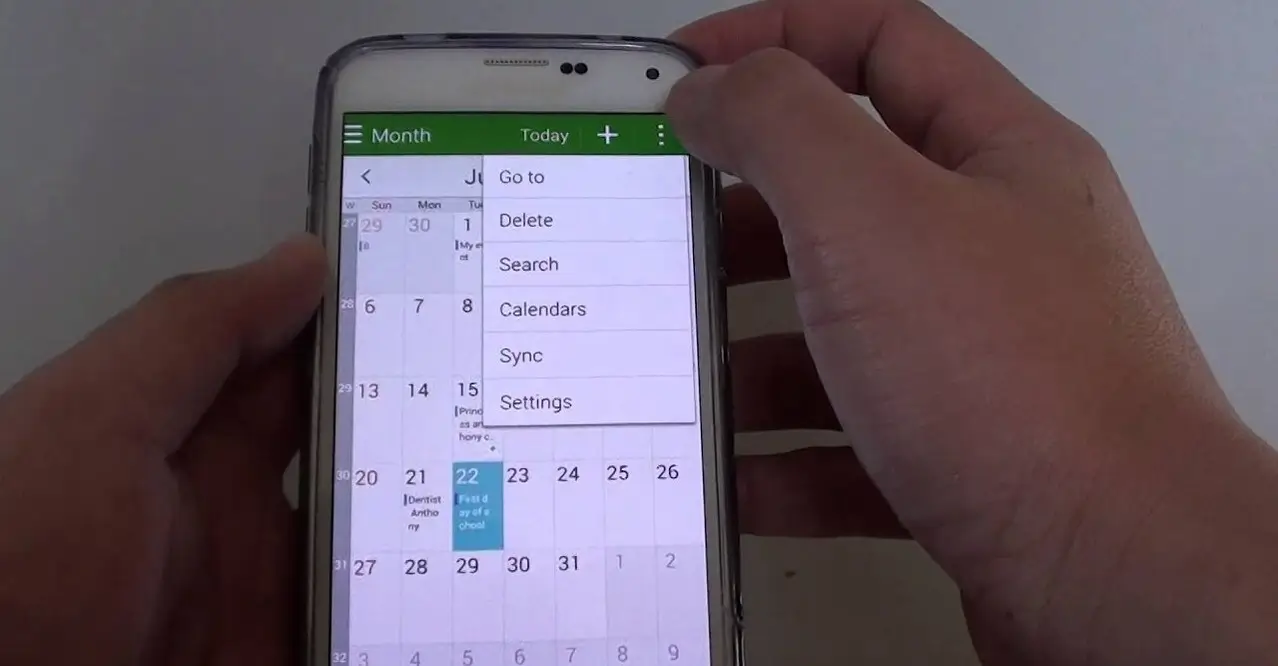
Deleting Events Using Samsung Calendar App
If you own a Samsung device, you might be using the Samsung Calendar app. Here’s how to delete events from it.
Step 1: Access Samsung Calendar
- Open the Samsung Calendar app from your home screen or app drawer.
- Switch to the relevant view (day, week, or month) to find the event.
Step 2: Find the Event
- Tap on the event to open its details.
- Review the event information to ensure it’s the correct one.
Step 3: Remove the Event
- Tap the “Delete” button, usually located at the bottom or top of the screen.
- Like Google Calendar, if it’s a recurring event, you can delete just this instance or all instances.
Step 4: Confirm Your Action
- A confirmation message will appear. Tap “Delete” or “OK” to confirm your choice.
- The event will be removed from your calendar.
Using Third-Party Calendar Apps
Many users opt for third-party calendar apps due to additional features and customization options. Regardless of the app, the general process of deleting events from calendar on Android remains similar. Here are the basic steps.
Step 1: Open Your Third-Party Calendar App
- Launch your preferred third-party calendar app (e.g., Any.do, Microsoft Outlook, etc.).
- Navigate to the appropriate date to find the event.
Step 2: Access the Event
- Tap on the event to open its details.
- Review the event to confirm it’s the one you want to delete.
Step 3: Delete the Event
- Look for a “Delete” option, which is often represented by a trash can icon or located in the event’s menu.
- If the event is recurring, choose whether to delete just this occurrence or all future ones.
Step 4: Confirm Deletion
- Confirm the deletion in the pop-up message that appears.
- The event will be removed from your calendar.
Deleting Multiple Events at Once
Sometimes, you may want to clean up your calendar by deleting multiple events simultaneously. Here’s how to do it, particularly on Google Calendar, as many apps may not support bulk deletion.
Step 1: Open Google Calendar
- Launch the Google Calendar app on your Android device.
- Switch to the “Month” view to see multiple events at once.
Step 2: Select Multiple Events
- Unfortunately, Google Calendar does not support bulk deletions directly on the mobile app. However, you can use the web version of Google Calendar for this purpose.
- Go to calendar.google.com and log in to your Google account.
Step 3: Use the Web Interface
- In the web interface, find the events you wish to delete.
- Click on each event to bring up the details.
Step 4: Delete Events
- Use the “Delete” option for each event.
- Confirm the deletions as needed.
If you’re using a different calendar app that supports bulk deletion, you should find similar functionality, often through a “Select” or “Manage” option that allows you to choose multiple events before deleting them.
Frequently Asked Questions
Here are some of the related questions people also ask:
How do I delete a single event from my Android calendar?
To delete a single event from your Android calendar, open the calendar app, locate the event, tap on it to open the details, and select the “Delete” option. Confirm the deletion when prompted.
Can I delete multiple events at once on my Android calendar?
Most Android calendar apps do not support bulk deletion directly. However, you can use the web version of Google Calendar to select and delete multiple events at once.
What happens to recurring events when I delete one occurrence?
When you delete one occurrence of a recurring event, you’ll be prompted to choose whether to delete just that instance or the entire series. Choose according to your needs.
Is it possible to recover deleted calendar events on Android?
If you accidentally delete an event, check your calendar app’s trash or recently deleted section. Some apps may allow you to restore deleted events within a certain timeframe.
How can I edit an event instead of deleting it?
To edit an event, open your calendar app, locate the event, tap on it to view details, and select the “Edit” option. Make your changes and save the event.
Do third-party calendar apps allow event deletion?
Yes, most third-party calendar apps support event deletion. The process is generally similar: open the event, select delete and confirm your choice.
Can I delete calendar events from my Android phone using voice commands?
Yes, if your calendar app supports voice commands (like Google Assistant), you can say something like “Delete my event on [date]” to remove a specific event.
The Bottom Line
Deleting events from your calendar on Android is straightforward, whether you’re using Google Calendar, Samsung Calendar, or a third-party app. Understanding how to delete events from calendar on Android can significantly improve your time management and keep your schedule organized.
Throughout this guide, we explored various methods tailored to different calendar applications, giving you the tools to manage your calendar effectively. Whether you’re clearing out past appointments or adjusting your upcoming schedule, knowing how to delete events will help you maintain a clutter-free calendar.
In addition to deleting events, consider periodically reviewing your calendar for any unnecessary entries and optimizing your event management settings to enhance productivity.
With this knowledge, you can take control of your schedule and ensure your calendar is a helpful tool rather than a source of confusion. Embrace these methods to maintain an organized and efficient calendar, allowing you to focus on what truly matters.