We may earn a commission for purchases through links on our site at no cost to you, Learn more.
- Ensure your Android device runs Android 6.0 or higher and has the Android Auto app installed.
- Verify that your vehicle is compatible with Android Auto and connect your phone via a high-quality USB cable.
- Familiarize yourself with the Android Auto interface, including voice commands and touchscreen controls.
- Use Google Maps features like turn-by-turn directions, real-time traffic updates, and points of interest with Android Auto.
- Customize Google Maps and Android Auto navigation settings for a personalized driving experience.
In today’s fast-paced world, having the right tools can significantly enhance your driving experience. One of the most valuable tools available is Google Maps, which can help you navigate, find places, and avoid traffic jams. When paired with Android Auto, this app becomes even more powerful, offering a seamless and safe way to use navigation while driving.
This guide explores how to use Google Maps with Android Auto, ensuring you get the most out of both technologies.
How to Use Google Maps with Android Auto
Google Maps has revolutionized navigation, providing turn-by-turn directions, real-time traffic updates, and local business information. Android Auto, Google’s interface for connecting smartphones to vehicles, enhances this functionality by integrating Google Maps directly into your car’s infotainment system.
This combination helps drivers stay focused on the road while still benefiting from advanced navigation features. Whether you’re using Android Auto for the first time or looking to refine your usage, this guide will walk you through everything you need to know about how to use Google Maps with Android Auto.
Setting Up Google Maps with Android Auto
1. Requirements and Initial Setup
Before diving into how to use Google Maps with Android Auto, it’s essential to ensure that you have the right equipment and setup. Here’s what you need:
- Compatible Smartphone: Ensure your Android device runs Android 6.0 (Marshmallow) or higher.
- Android Auto App: If your device does not have the Android Auto app pre-installed, download and install it from the Google Play Store.
- Vehicle Compatibility: Your car must have Android Auto capability. Check your vehicle’s manual or consult the manufacturer to confirm compatibility.
- USB Cable: Use a high-quality USB cable to connect your phone to your car’s USB port.
Once you have these elements in place, follow these steps to set up:
- Connect Your Phone: Plug your phone into the vehicle’s USB port using the USB cable.
- Enable Permissions: Allow Android Auto to access your phone’s apps and data by following the on-screen prompts.
- Open Google Maps: Once connected, Android Auto should launch automatically, and Google Maps will appear on your car’s display.
Navigating the Android Auto Interface
2. Understanding the Display and Controls
Once you’ve set up Google Maps with Android Auto, familiarize yourself with the interface:
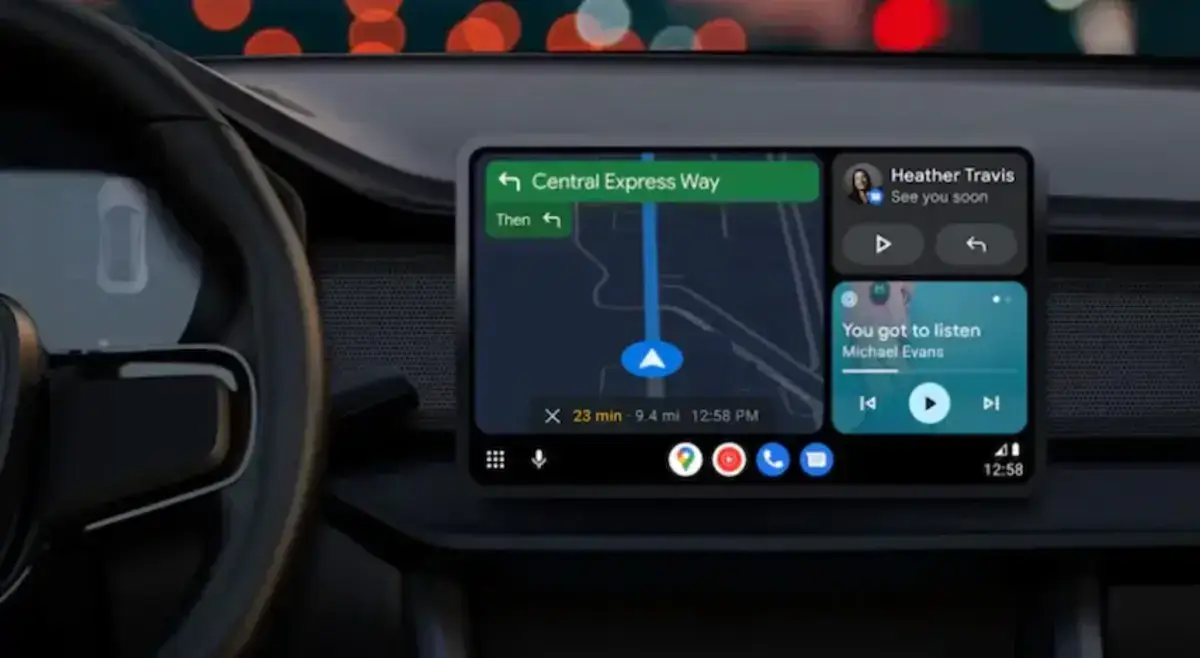
- Home Screen: Android Auto’s home screen typically shows a map view with navigation options. From here, you can access other apps, including Google Maps.
- Voice Commands: Use voice commands to interact with Google Maps and Android Auto without taking your hands off the wheel. Simply press the voice command button on your steering wheel or use the microphone icon on the screen.
- Touchscreen Controls: If your car’s infotainment system supports touch input, you can tap on various map elements, such as search bars, route options, and points of interest.
Understanding these controls will help you navigate more efficiently and safely. For instance, pressing the voice command button allows you to ask Google Maps for directions, find nearby restaurants, or check traffic conditions without manually interacting with the screen.
Using Google Maps Features with Android Auto
3. Exploring Navigation Options
Google Maps offers various navigation features that are accessible through Android Auto:
- Turn-by-Turn Directions: Receive clear, audible instructions for each turn on your route. The directions will also appear on your car’s display.
- Real-Time Traffic Updates: Google Maps provides live traffic updates and can suggest alternative routes to avoid delays.
- Points of Interest: Search for nearby gas stations, restaurants, or ATMs. Google Maps will show these places on your route or as separate destinations.
To use these features, simply say commands like “Navigate to [destination]” or “Find nearby [type of business].” You can also tap on the search bar to manually input destinations or search for points of interest.
4. Customizing Your Navigation Experience
Enhance your driving experience by customizing how Google Maps works with Android Auto:
- Preferred Routes: Adjust settings in Google Maps on your phone to set preferences for avoiding toll roads, highways, or ferries. These preferences will carry over to Android Auto.
- Voice Guidance Settings: Adjust the volume and frequency of voice guidance. You can choose to hear instructions more frequently or only when necessary.
- Dark Mode: To reduce glare at night, switch to dark mode for the map display in Google Maps settings, which will be reflected on the Android Auto screen.
By customizing these settings, you can tailor Google Maps to better suit your driving habits and preferences.
Troubleshooting Common Issues
5. Resolving Connection and Performance Problems
While using Google Maps with Android Auto, you might encounter some issues. Here’s how to address common problems:
- Connection Issues: If Android Auto fails to connect, try using a different USB cable or port. Ensure that your phone and car’s infotainment system are updated to the latest software versions.
- Performance Lag: If the navigation experience is sluggish, restart your phone and the car’s infotainment system. Also, check for updates for Android Auto and Google Maps.
- App Crashes: If Google Maps crashes, try clearing the app’s cache or reinstalling it. Ensure that your phone’s operating system is up to date.
Keeping your apps and devices updated can prevent many of these issues and ensure a smoother experience.
Frequent Asked Questions
Here are some of the related questions people also ask:
1. How do I set up Google Maps with Android Auto?
Answer: To set up Google Maps with Android Auto, ensure your Android device is running Android 6.0 or higher and has the Android Auto app installed. Connect your phone to your vehicle’s USB port with a high-quality cable. Follow the on-screen prompts to grant necessary permissions, and Google Maps should launch automatically on your car’s display.
2. What are the main features of Google Maps when used with Android Auto?
Answer: When used with Android Auto, Google Maps offers turn-by-turn navigation, real-time traffic updates, and the ability to search for nearby points of interest like gas stations and restaurants. These features help drivers navigate efficiently and find useful services on the go.
3. Can I customize Google Maps settings in Android Auto?
Answer: Yes, you can customize Google Maps settings in Android Auto. You can adjust navigation preferences, such as avoiding toll roads or highways, configure voice guidance volume, and switch to dark mode for the map display.
4. What should I do if Android Auto doesn’t connect to Google Maps?
Answer: If Android Auto doesn’t connect to Google Maps, try using a different USB cable or port, ensure both your phone and infotainment system have the latest updates, and check that all necessary permissions are granted. Restarting your devices may also resolve connection issues.
5. How do I use voice commands with Google Maps in Android Auto?
Answer: To use voice commands with Google Maps in Android Auto, press the voice command button on your steering wheel or tap the microphone icon on the screen. You can then ask for directions, find nearby places, or get traffic updates without manually interacting with the display.
6. What should I do if Google Maps crashes on Android Auto?
Answer: If Google Maps crashes on Android Auto, try clearing the app’s cache, restarting your phone and infotainment system, or reinstalling the app. Ensuring that both your phone’s operating system and Android Auto app are up to date can also help prevent crashes.
7. Is Android Auto compatible with all vehicles?
Answer: No, not all vehicles are compatible with Android Auto. Check your vehicle’s manual or consult with the manufacturer to confirm compatibility. Many newer vehicles support Android Auto, but older models may not.
The Bottom Line
Incorporating Google Maps with Android Auto can significantly enhance your driving experience by providing seamless navigation and real-time information. You can make the most of this powerful combination by understanding how to use Google Maps with Android Auto, from initial setup and interface navigation to exploring features and troubleshooting problems.
With the right setup, you’ll benefit from enhanced navigation capabilities, such as real-time traffic updates and customizable routes, all while staying focused on the road. Whether you’re a frequent traveler or simply looking to make your daily commute more efficient, mastering how to use Google Maps with Android Auto will ensure you navigate confidently and conveniently.
By leveraging these tools effectively, you’ll transform your vehicle into a smart, connected driving environment. Enjoy the journey with peace of mind, knowing that your navigation needs are well taken care of.