We may earn a commission for purchases through links on our site at no cost to you, Learn more.
- Drafts on Facebook allow users to save posts for later editing or sharing.
- Access drafts on Facebook mobile Android through the profile’s ‘Posts’ section.
- Regularly check and manage your drafts to avoid losing valuable content.
- Troubleshoot common issues like drafts not appearing or disappearing by updating the app or restarting your device.
- Use concise language and engaging media to enhance the quality of your drafts.
- Edit drafts for clarity and professionalism before publishing.
- Review privacy settings to control who can see your posts.
- Embracing drafts can improve your social media presence and engagement.
Facebook has evolved from a simple social networking site into a multi-faceted platform that encompasses news, entertainment, community building, and much more. With millions of users worldwide, the platform constantly updates its features, including how users create and manage posts.
One feature that many users often overlook is the draft feature. This allows users to save their posts for later editing or sharing. If you’re wondering where to find drafts on Facebook mobile Android, you’re not alone. In this blog post, we’ll explore the ins and outs of finding drafts on the Facebook mobile app for Android users.
Where to Find Drafts on Facebook Mobile Android
Before discussing where to find drafts on Facebook mobile Android, let’s first understand what drafts are and why they are beneficial. Drafts allow users to compose posts without the pressure of sharing them immediately. This feature is particularly useful for users who want to refine their thoughts or those who may not have time to post but want to ensure they don’t lose their ideas.
Drafts can be used for various content, including status updates, photos, videos, and links. Whether you’re crafting a heartfelt message, planning to share a memorable photo from your last trip, or promoting an event, the draft feature allows you to save your work and return to it later.
Why Use Drafts?
- Time Management: You can draft posts at your convenience and publish them when ready, which is especially helpful for busy users.
- Editing Freedom: A draft allows for more thorough editing, ensuring your message is clear and engaging.
- Preventing Loss of Ideas: We all have moments of inspiration, and drafts allow you to capture those thoughts before they slip away.
Now that we’ve discussed the importance of drafts, let’s explore where to find them on Facebook mobile Android.
Accessing Drafts in the Facebook App
Finding drafts on the Facebook mobile app for Android is straightforward, but the process can vary slightly depending on updates and changes to the app’s interface. Below are detailed steps to help you navigate the app to locate your drafts.
Step-by-Step Guide to Finding Drafts
- Open the Facebook App: Launch the Facebook app on your Android device. Ensure you are logged into your account.
- Navigate to the Menu: Tap the three horizontal lines (also known as the hamburger menu) at the top right corner of the app. This will open a side menu where you can access various features of the app.
- Select ‘Your Profile’: Scroll down the menu and tap on your name or profile picture to access your profile page.
- Find ‘Posts’: Search the ‘Posts’ section on your profile page. Tap on it to view all your recent posts.
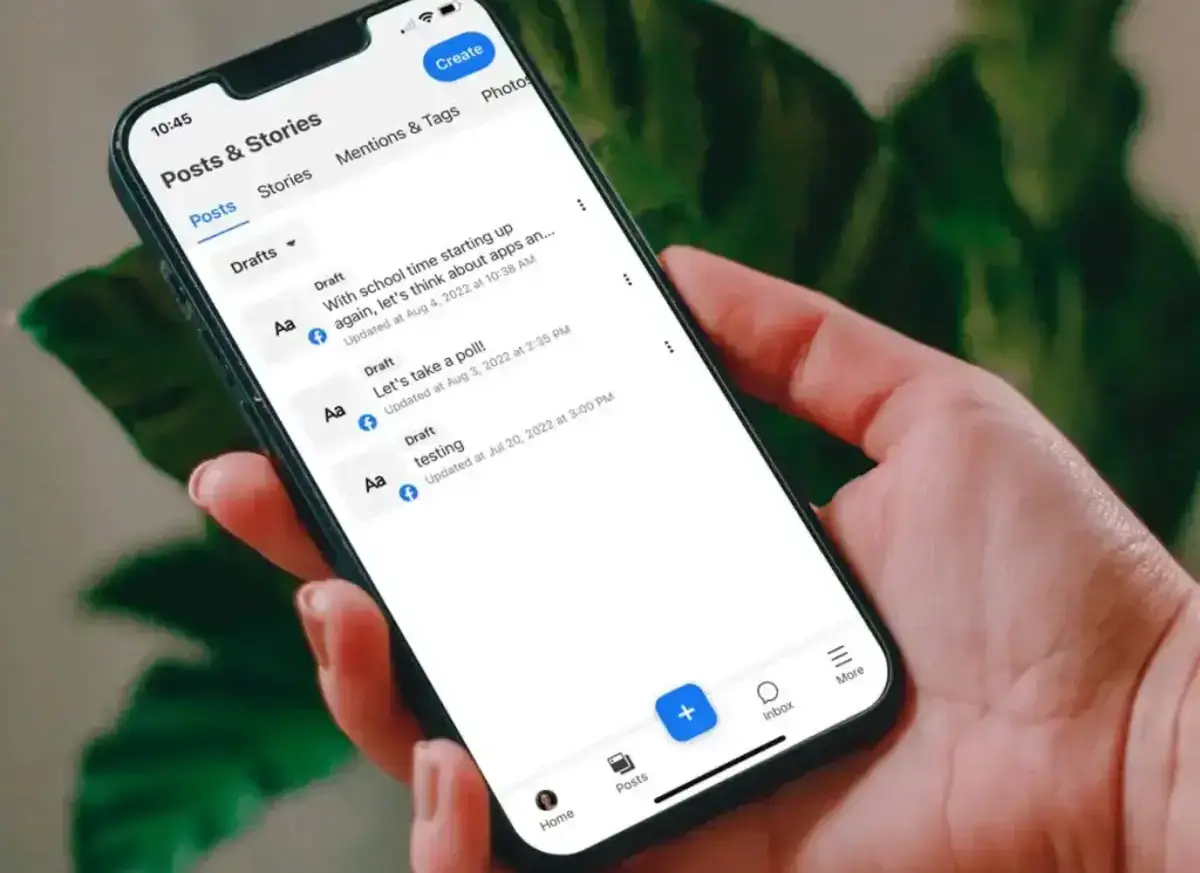
- Locate Drafts: In the ‘Posts’ section, look for a tab labeled ‘Drafts.’ Here, you’ll find all the drafts that you’ve saved. Tap on any draft to open it, edit, and share.
Note on Draft Management
It’s essential to remember that drafts may not be saved indefinitely. If you haven’t accessed or edited a draft in a long time, Facebook may automatically delete it to free up space. Regularly checking and managing your drafts ensures you don’t lose valuable content.
Troubleshooting Common Issues
Sometimes, users may encounter issues while trying to locate their drafts. Here are a few common problems and their solutions when looking for where to find drafts on Facebook mobile Android.
1. Drafts Not Appearing
If you don’t see the drafts option or if it appears empty, it could be due to:
- App Version: Make sure your Facebook app is up to date. An outdated app may have bugs or missing features. Visit the Google Play Store to check for updates.
- Temporary Glitches: Sometimes, the app may experience temporary glitches. Restart the app or your device to see if the drafts appear.
2. Losing Drafts
If you’ve lost your drafts, here are a few tips to help you avoid this in the future:
- Save Frequently: After drafting your content, make it a habit to save it regularly. This is especially true for longer posts.
- Check Your Drafts Regularly: Visit the drafts section regularly to ensure your saved drafts are still there and to keep them fresh.
3. Different Layouts
The layout of the Facebook app can change with updates. If you can’t find your drafts, look for similar terms or features that might have been renamed or relocated in the app’s new layout.
By following these troubleshooting tips, you should have a smoother experience while navigating the Facebook app.
Best Practices for Using Drafts
While knowing where to find drafts on Facebook mobile Android is essential, understanding how to make the most of this feature can enhance your social media experience. Here are some best practices for using drafts effectively.
1. Keep It Concise
When drafting a post, it’s best to be concise and clear. Long-winded posts may lose the interest of your audience. Aim for clarity and get to the point quickly to keep your audience engaged.
2. Use Media Wisely
Incorporating images, videos, or links can make your posts more engaging. When saving drafts, consider including media that enhances your message. Just preview how your media looks in the post before sharing it.
3. Edit for Quality
Take the time to proofread your drafts before publishing. Check for spelling and grammatical errors, and ensure your post flows well. A polished post is more likely to receive engagement from your audience.
4. Review Privacy Settings
Before posting, double-check your privacy settings. Decide who can see your post (public, friends, only me, etc.). Understanding these settings will help you reach your intended audience effectively.
By following these best practices, you can maximize the effectiveness of your drafts, ensuring that your posts resonate with your audience and maintain a professional appearance.
Frequently Asked Questions
Here are some of the related questions people also ask:
How do I create a draft on Facebook mobile?
To create a draft on Facebook mobile, open the app, start a new post by tapping “What’s on your mind?”, compose your content, and exit the post instead of posting. Facebook will prompt you to save it as a draft.
Can I access my Facebook drafts on a computer?
No, Facebook drafts created on the mobile app are inaccessible through the desktop version. Drafts are specific to the mobile app interface.
Where do I find my drafts on Facebook?
You can find your drafts by going to your profile, tapping on the ‘Posts’ section, and looking for the ‘Drafts’ tab, where all your saved drafts are stored.
What happens to my drafts if I uninstall the Facebook app?
If you uninstall the Facebook app, any drafts saved locally may be lost. It’s advisable to back up important drafts before uninstalling the app.
Are drafts automatically deleted on Facebook?
Yes, Facebook may automatically delete drafts that have not been accessed or edited for an extended period to free up space.
Can I edit a draft after saving it on Facebook?
Yes, you can edit a draft anytime after saving it. Locate the draft in the ‘Drafts’ section, tap on it, make your changes, and then share it.
Is there a limit to how many drafts I can save on Facebook?
While there is no specified limit, Facebook may remove older drafts if you have many saved, especially if they haven’t been accessed in a long time.
The Bottom Line
In conclusion, knowing where to find drafts on Facebook mobile Android is invaluable for users looking to enhance their social media experience. Drafts provide a practical solution for managing your posts efficiently, allowing for better time management, editing, and creativity.
By following the steps outlined in this blog post, you should be able to access your drafts easily, troubleshoot any issues, and implement best practices for effective use. Remember that drafts reflect your creativity, and utilizing them wisely can elevate your presence on social media.
In a fast-paced digital world, creating and refining your posts can significantly impact how your audience perceives you. Embrace the draft feature, explore its capabilities, and enjoy a more organized approach to your Facebook posts. Happy posting!